AI Chat #
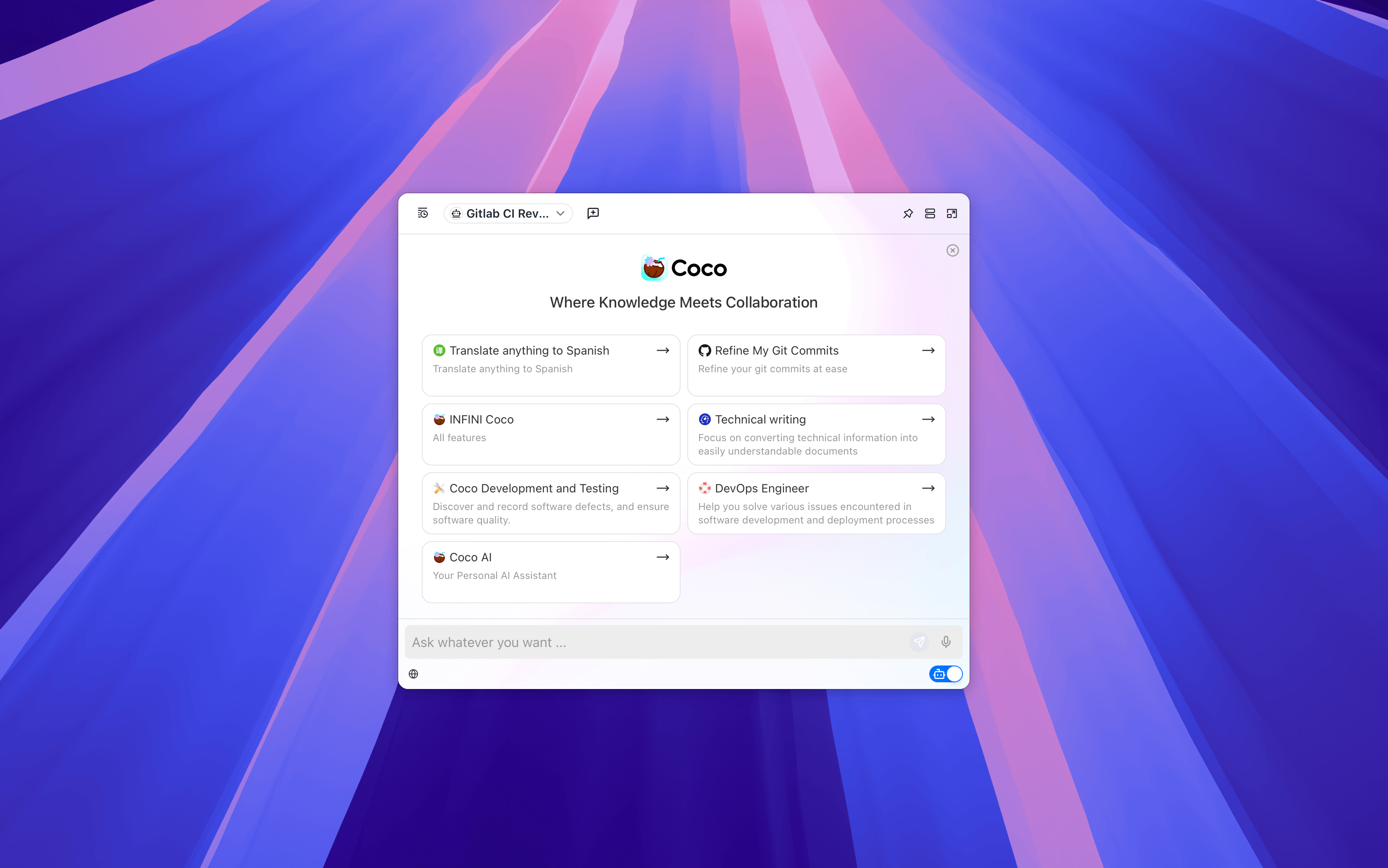
Coco AI is not just a search tool, but your AI intelligent center. In chat mode, you can communicate with AI in natural language, ask questions, analyze files, and summarize knowledge.
Chat Entry #
Use the global shortcut (default:
Shift + Meta + Space) to open the Coco AI interface.The interface is in chat mode (use the switch button or the shortcut
Meta + Tto switch modes).Enter natural language questions in the input box. Press
Enterto start the conversation.
Chat Interface and Functions #
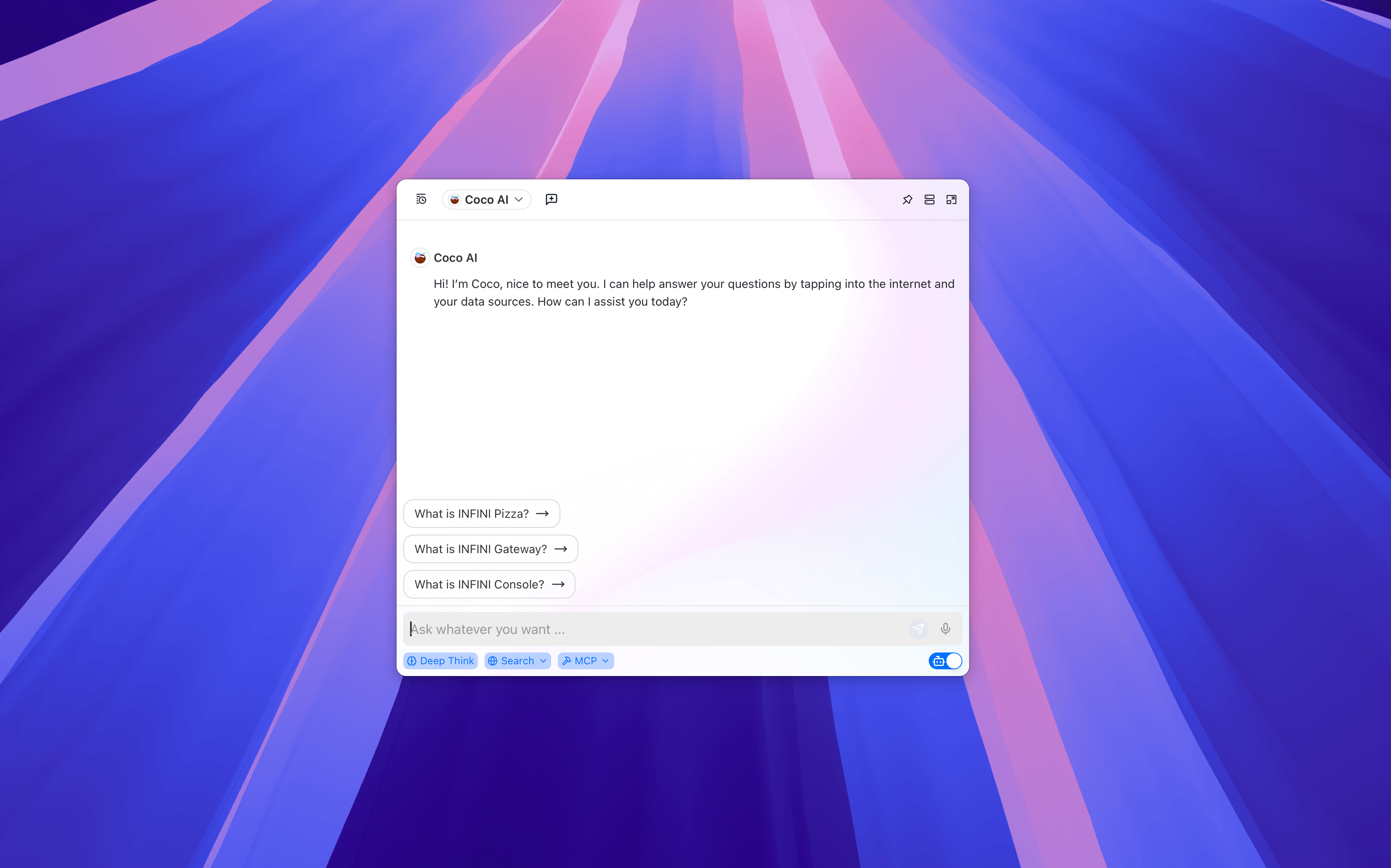
Coco AI’s chat interface is designed to be concise and intuitive, allowing you to quickly switch AI assistants, access different Coco Servers, browse historical conversations, or use advanced capabilities such as deep thinking, web search, and tool calls.
Interface Overview #
In chat mode, the Coco AI interface mainly consists of the following areas:
- Top Bar
- Assistant Selection: The drop-down menu in the upper left corner allows you to quickly switch between different AI assistants.
- Historical Conversations: Click the icon in the upper left corner to view recent conversations, and click any one to restore the conversation context.
- Server Switching: The cloud icon in the upper right corner shows the currently connected Coco Server, and you can switch or refresh the server with one click.
- Independent Window Mode: The icon in the upper right corner can pop up the current conversation into an independent window, facilitating multi-task collaboration or comparison viewing.
- Middle Area
- Displays conversation content and AI responses.
- Bottom Input Area
- Enter messages and press
Enterto send, supporting voice input. - The left function bar includes controls such as web search, tool call (MCP), and deep thinking switch.
- Enter messages and press
Multiple Servers and Assistants #
Switching Coco Server #
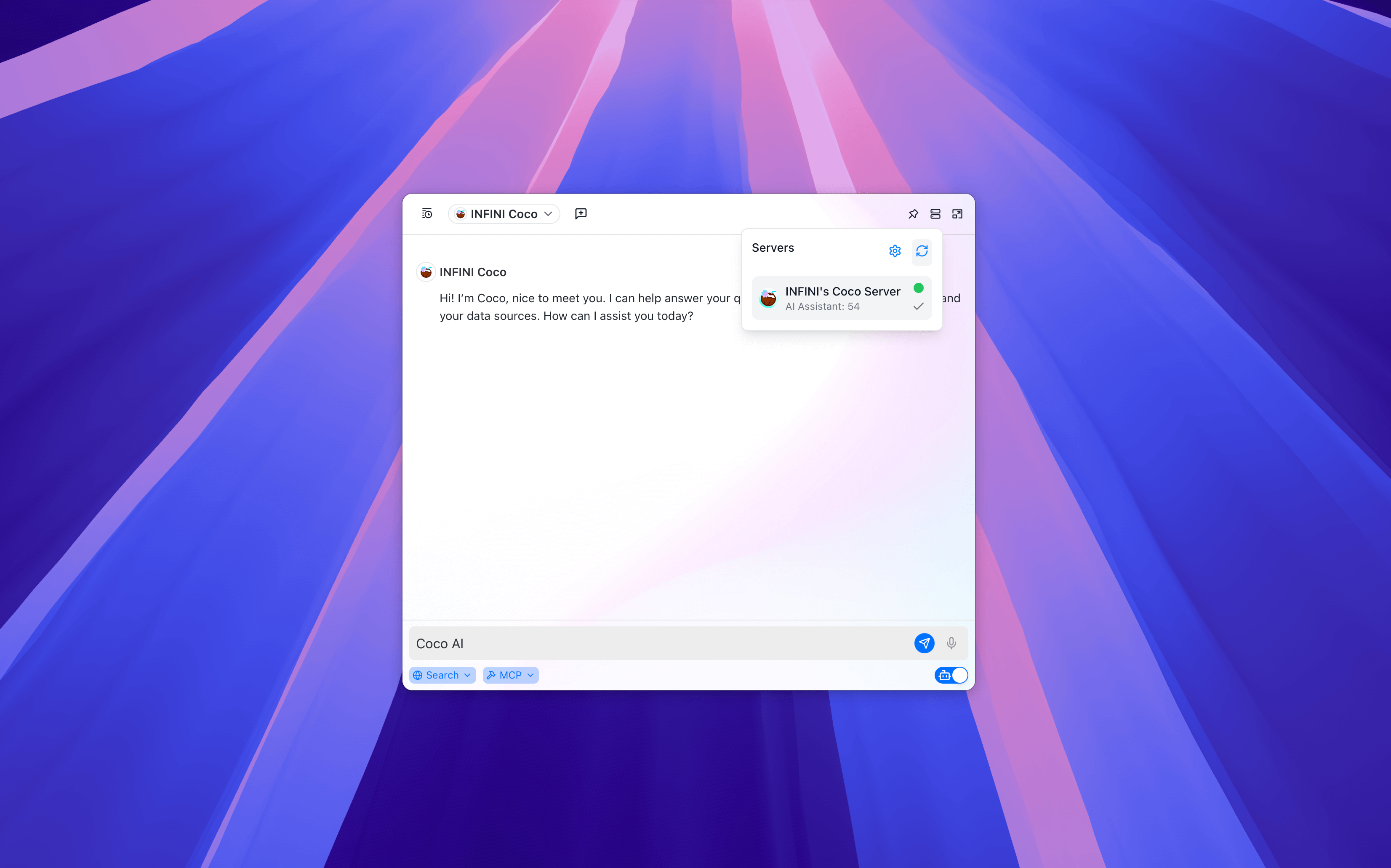
Coco AI supports connecting to multiple Coco Servers, and each server can contain a different number of AI assistants.
Click the server icon in the upper right corner to view the current connection status:
- Displays the server name and online status.
- Lists the number of available AI assistants on the server.
- Supports one-click switching, refreshing, or entering the settings page.
Switching AI Assistants #
The drop-down menu in the upper left corner lists all assistants in the current server.
Each assistant may have different capabilities and modes according to the configuration.
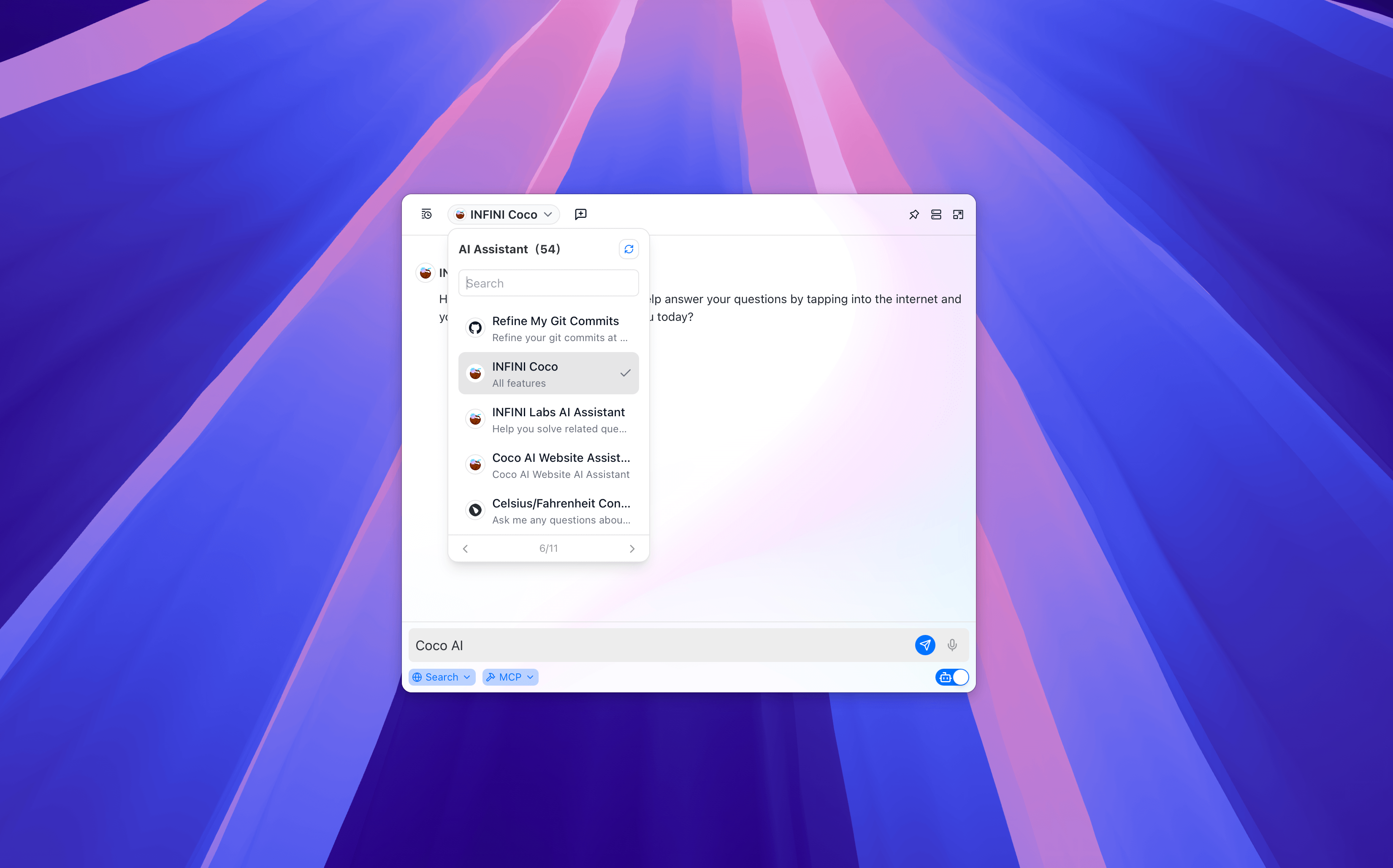
💡 Tip: When switching assistants in the same conversation, Coco AI will automatically retain the context of the current conversation. This means you can let different assistants take turns answering or supplementing analysis in the same round of conversation without re-entering background content.
Bottom Function Bar #
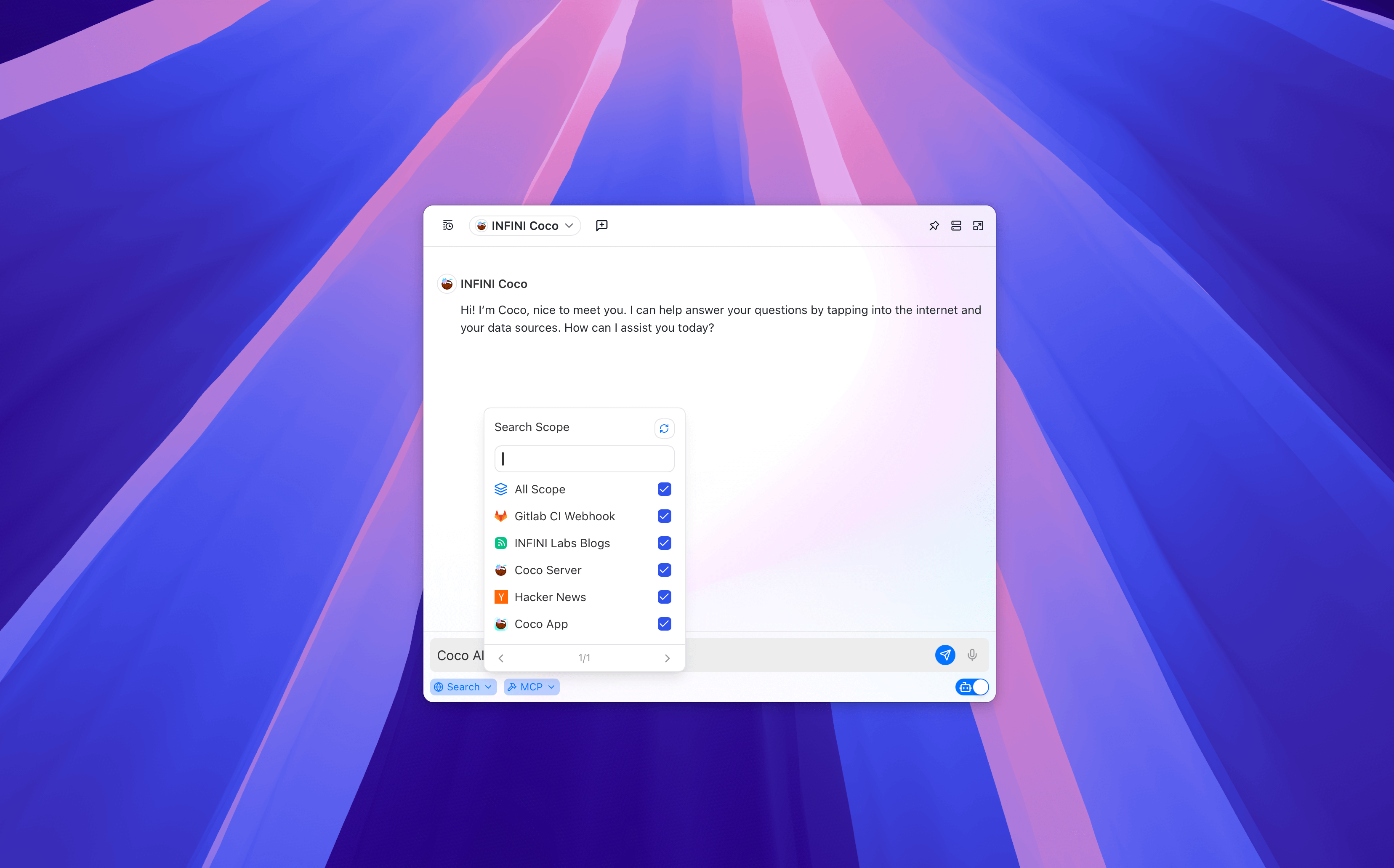
The function buttons at the bottom left of the input box can quickly call the following capabilities:
| Function | Icon | Description |
|---|---|---|
| Deep Think Switch | 🧠 | Turn on or off the deep think capability (only available for assistants in deep think mode). |
| Search Switch | 🌐 | Call the data sources connected in the Coco Server for real-time search. (Some data sources can be selected as needed) |
| MCP Switch | 🔨 | Call external tools or commands, such as database query, translation, task execution, etc. |
💡 Tip: Search and MCP tool calls rely on the currently connected Coco Server, and their availability depends on server configuration.
Interactive Operations #
- Press
Enterto send a message - Press
Shift + Enterto wrap lines - Press
Meta + Uto switch AI assistants - Press
Meta + Sto switch Coco Server - Press
Meta + Eto pop up the current conversation into an independent window