Extension #
Extensions of Coco AI are plug-in modules that add specific functions to the core system. By installing extensions, you can greatly enhance the capabilities of Coco AI and create a personalized intelligent working environment.
How to Install Extensions #
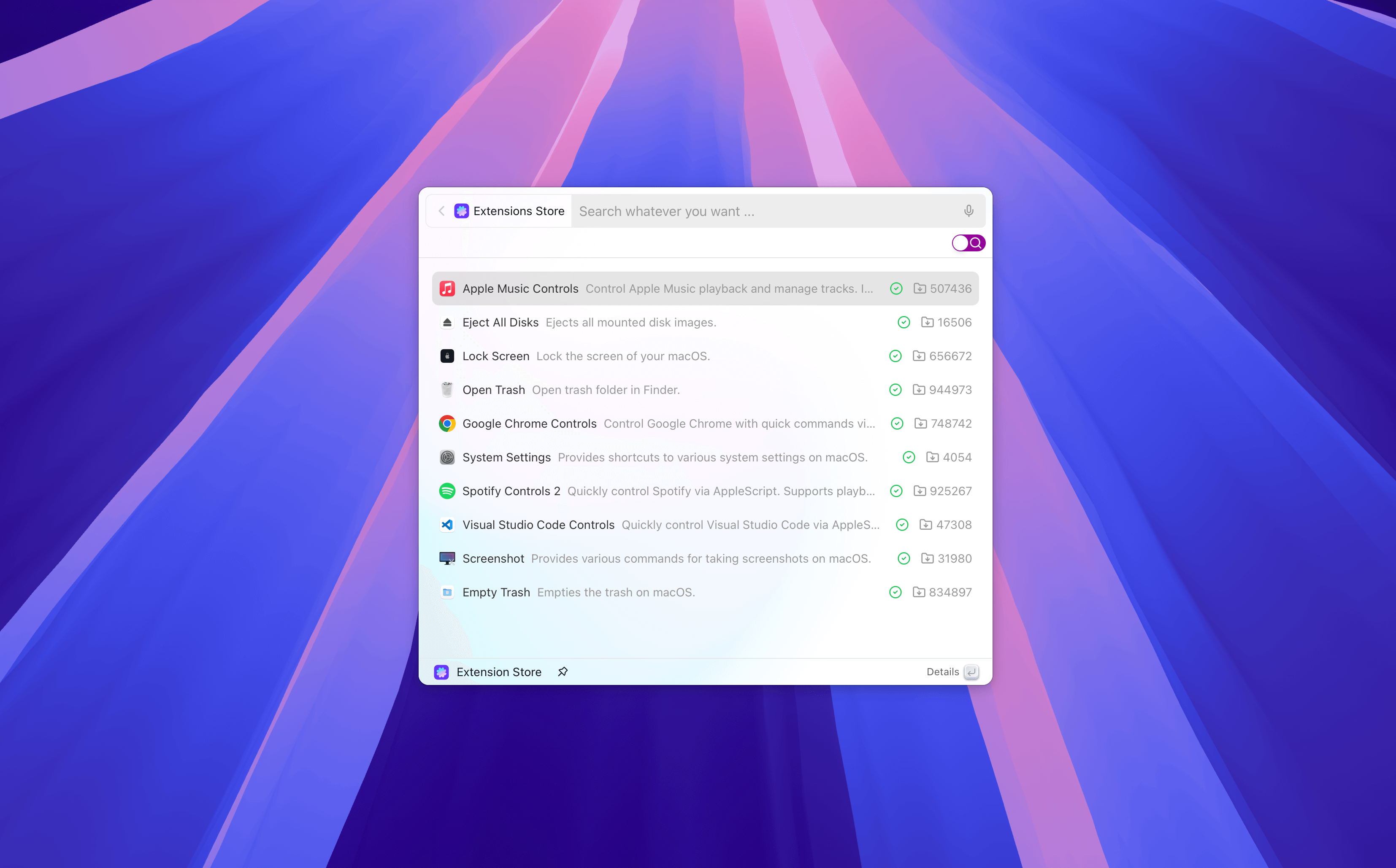
Install via Extension Store #
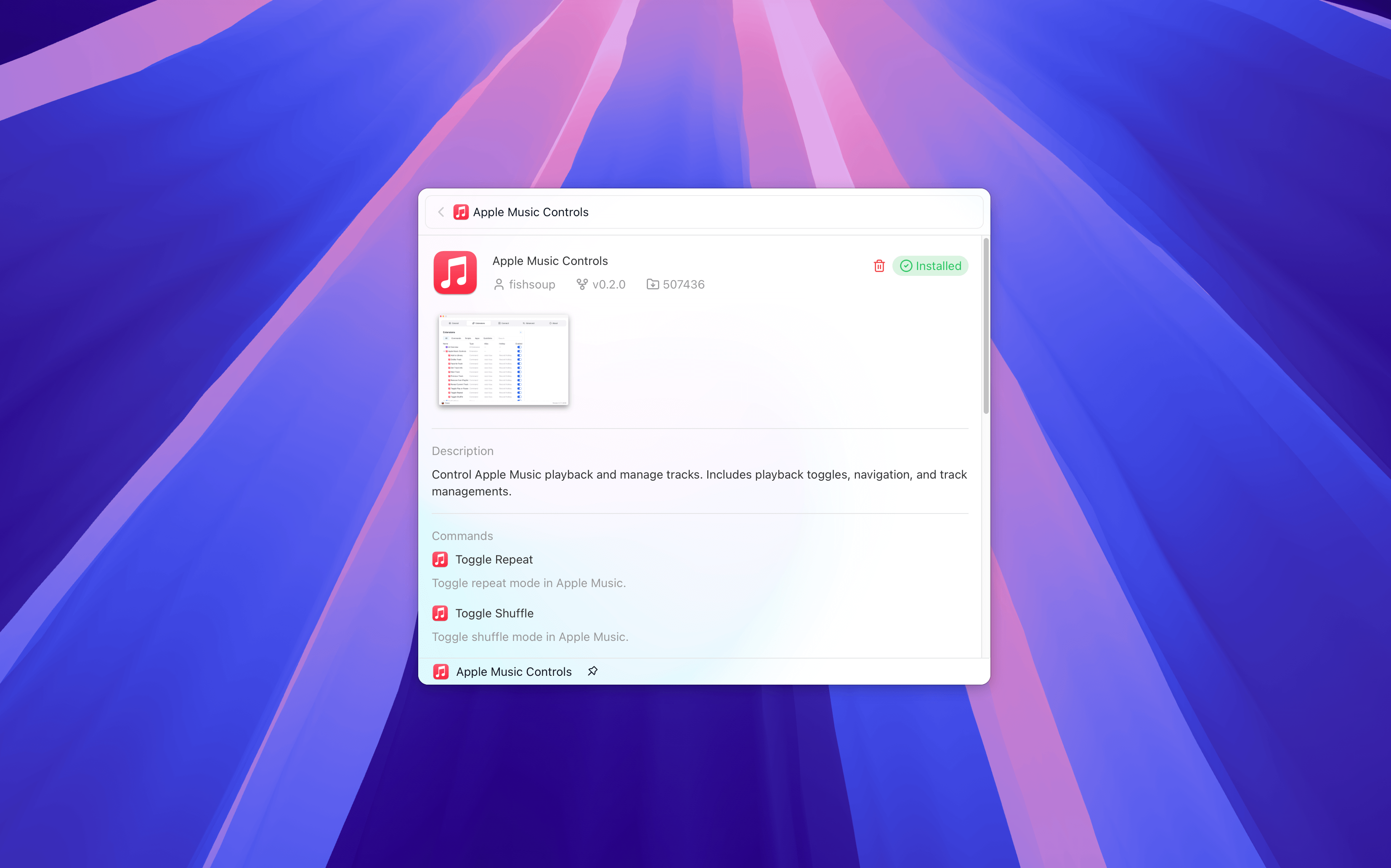
In the Extension Store, you can browse or search for the required extensions. After finding the desired extension, press ↵ to view details, and click the install button on the details page. Coco AI will automatically complete the download and installation process.
How to Use Extensions #
After installing an extension, you can call it through the unified search box.
Command-type Extensions (Commands) #
In search mode, enter the command name or keywords, select the corresponding command from the search results, and press Enter to execute it.
View-type Extensions (Views) #
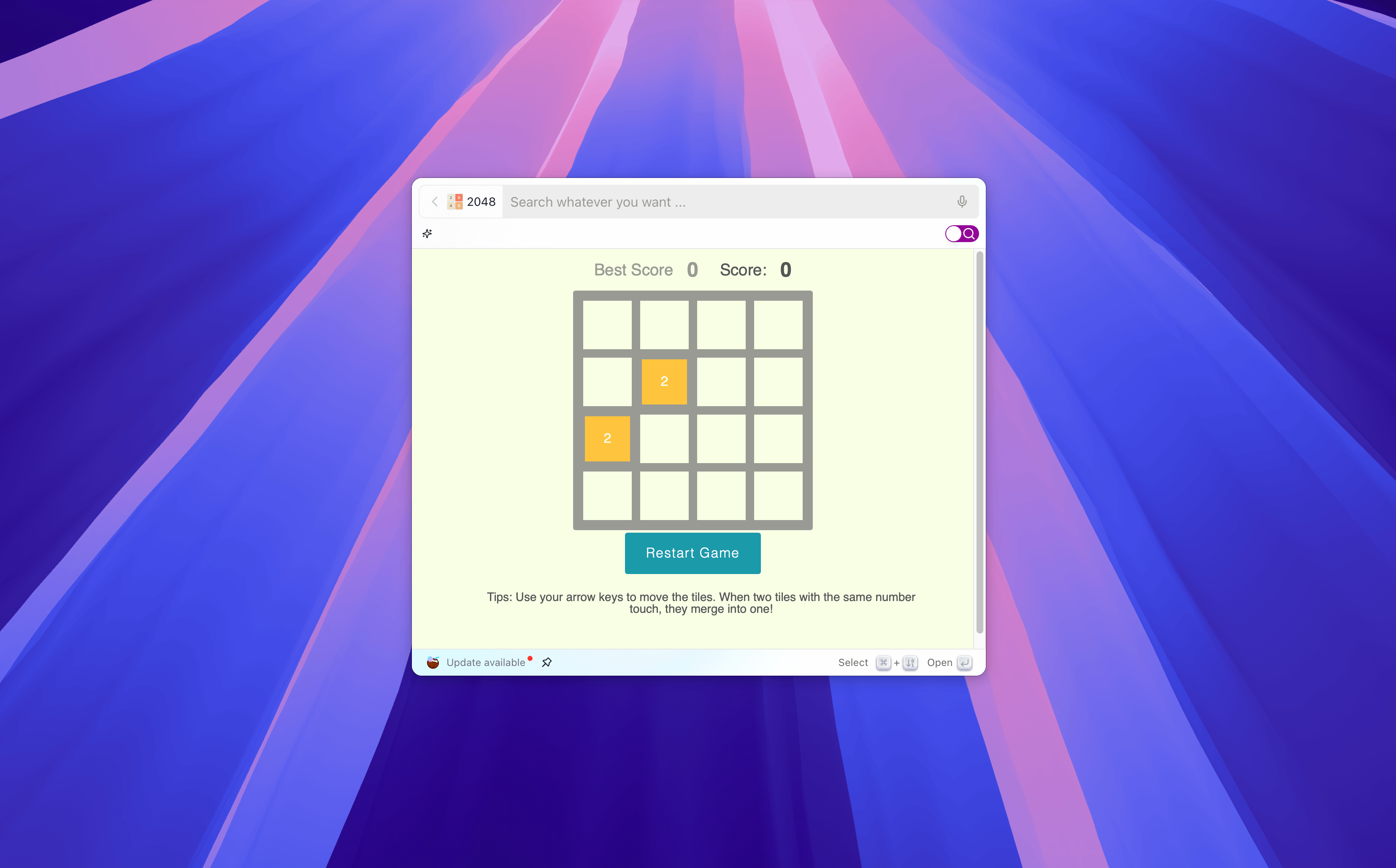
View-type extensions provide a complete user interface, embedding visual applications in Coco AI, which can display complex information and offer rich interactive experiences.
In search mode, enter the extension name or keywords, select the corresponding extension from the search results, and press ↵ to enter the corresponding extension’s interaction interface.
Extension Management #
View Installed Extensions #
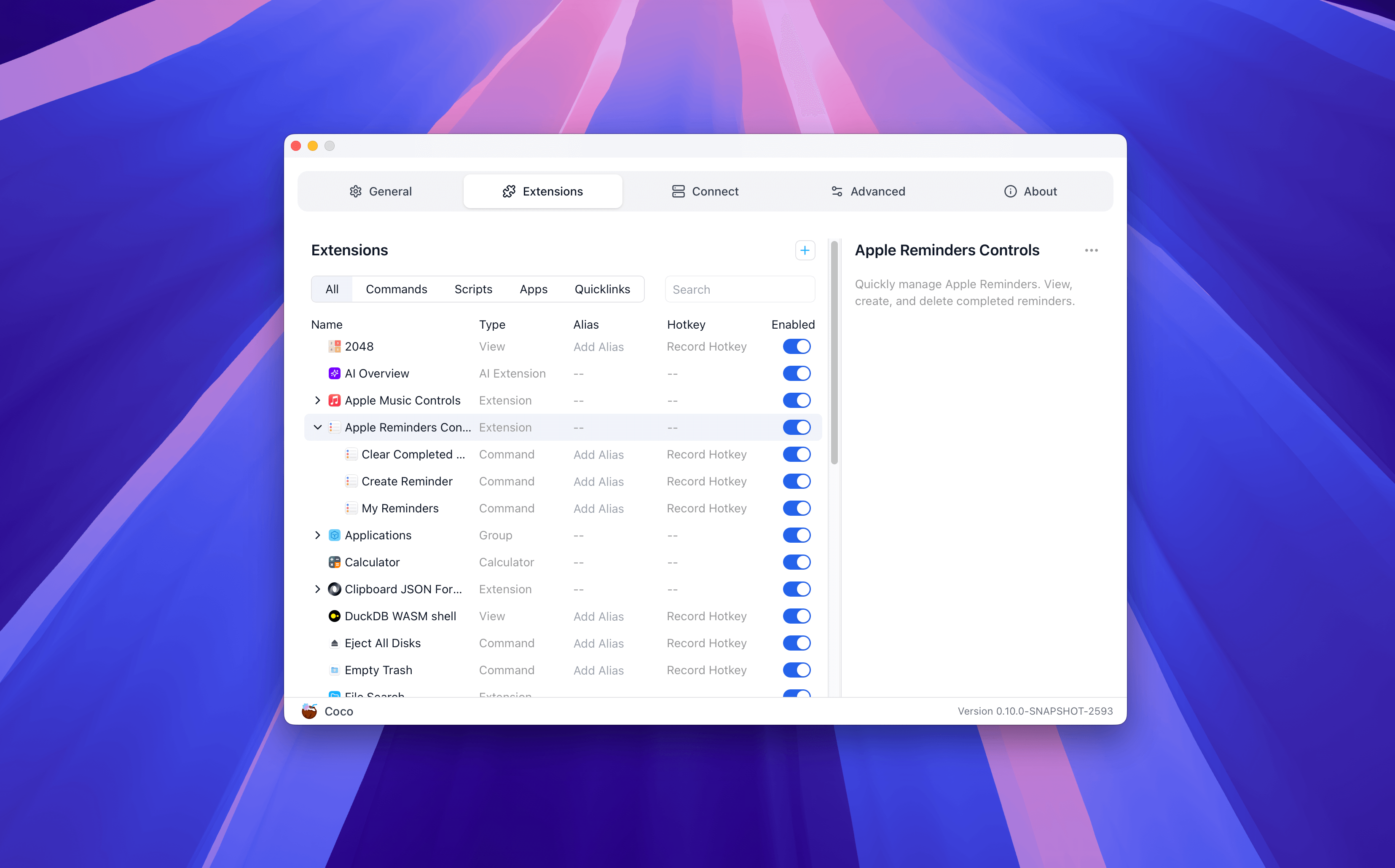
Open Settings (shortcut key: Meta+,). On the Extensions page, you can:
- Filter by type
- Check the extension status (enabled/disabled)
- View and modify extension configurations
- Uninstall extensions
- Set extension command shortcuts or aliases
Uninstall Extensions #
On the Extensions page in Settings, select the extension you want to uninstall. On the right side of the extension title in the details section, click the … button and select Uninstall.