Keyboard Shortcuts #
Coco AI provides an intuitive set of keyboard shortcuts to help you navigate efficiently, execute commands, switch modes, and manage conversations. Mastering these shortcuts can greatly enhance your user experience.
You don’t need to memorize the shortcuts #
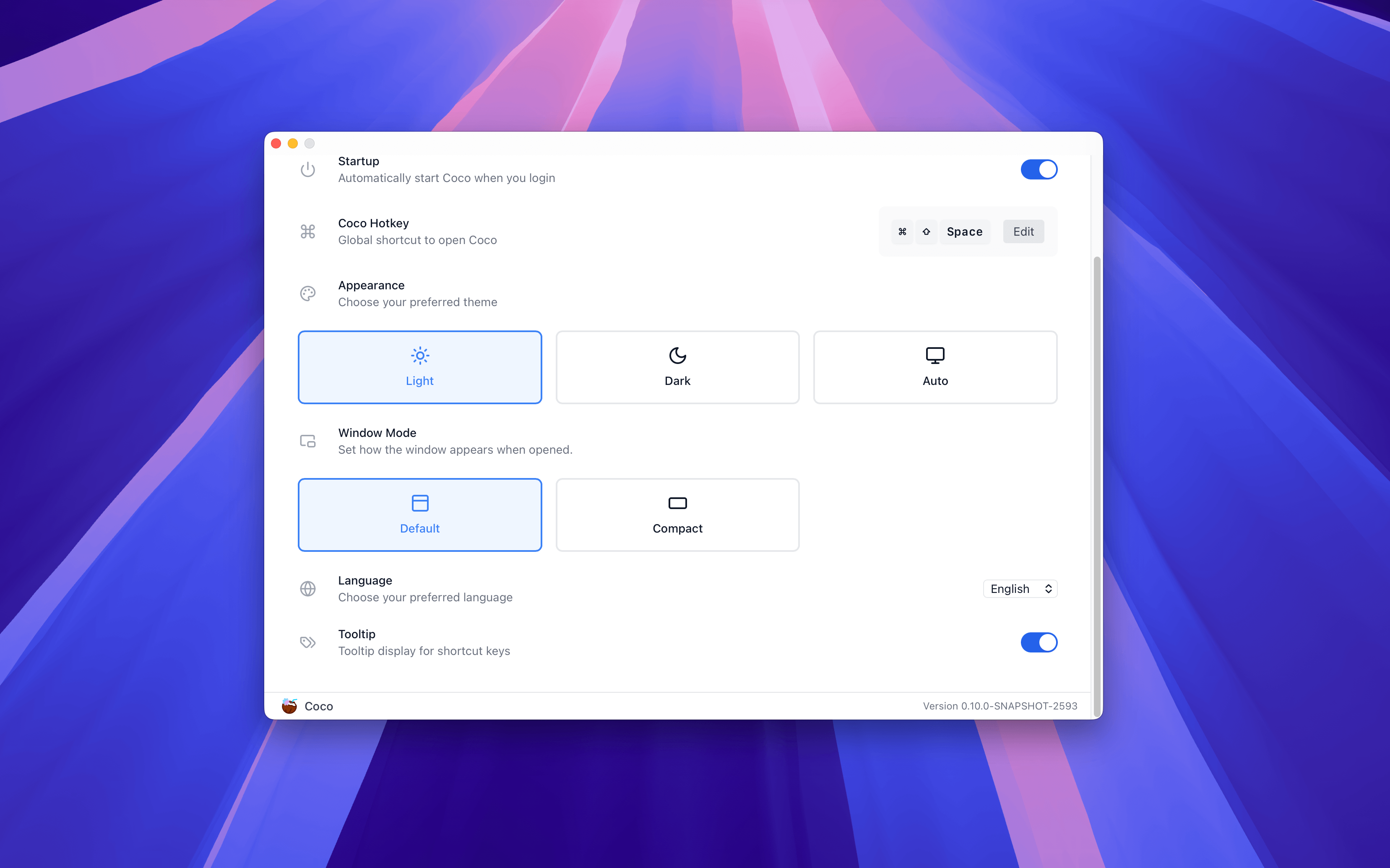
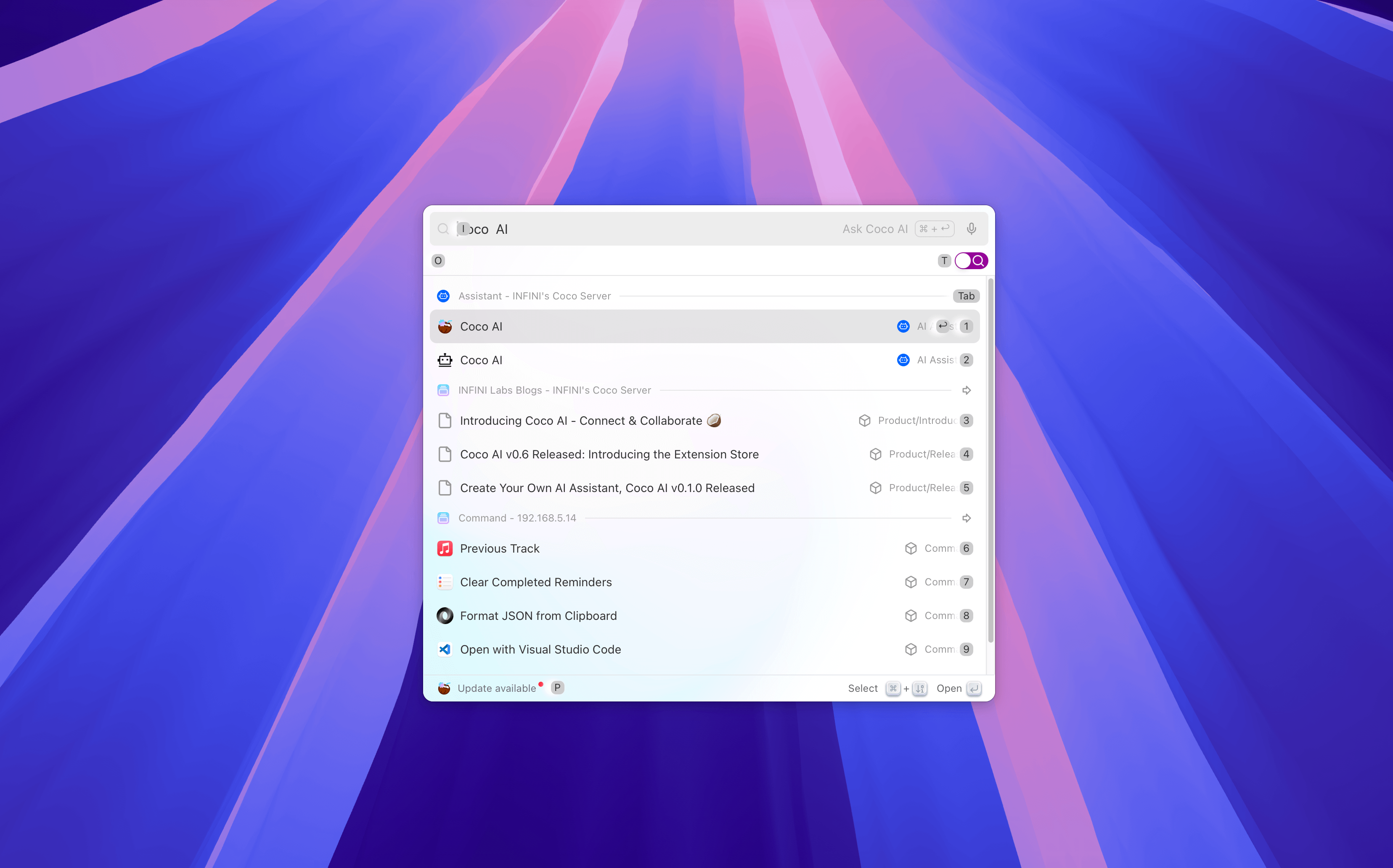
Simply go to Settings (shortcut: Meta + ,) → General → Tooltip, and turn on the shortcut hint switch. After enabling, when you hold down the modifier key, the corresponding shortcut hints will be displayed in real-time in each functional area of the interface.
Global Shortcuts #
These shortcuts work across any interface, helping you quickly access Coco AI’s core functions:
Shift + Meta + SpaceOpen the Coco AI windowMeta + TSwitch between search/conversation modesMeta + IReturn to the input boxMeta + PPin the window, keeping the Coco AI window displayed at the front of the desktopMeta + ,Open the Coco AI settings pageEscClose the Coco AI window
Search Mode Shortcuts #
In Coco AI’s search mode, keyboard shortcuts can help you browse and filter search results more efficiently:
EnterOpen the selected resultMeta + NumberSelect the result corresponding to the number and open itMeta + KView actionable items for the selected resultTabUse the data source of the current result as a filter conditionArrow Up / DownSelect search results up and downMeta + Arrow Up / DownQuickly jump to the first result of the upper/lower category
Chat Mode Shortcuts #
In Coco AI’s chat mode, keyboard shortcuts can help you quickly switch assistants, control conversations, and input information:
EnterSend a messageShift + EnterEnter a new lineMeta + NCreate a new conversationMeta + YView conversation historyMeta + USwitch assistantsMeta + SSwitch Coco ServerMeta + EPop out the current conversation into an independent window
Custom Shortcuts #
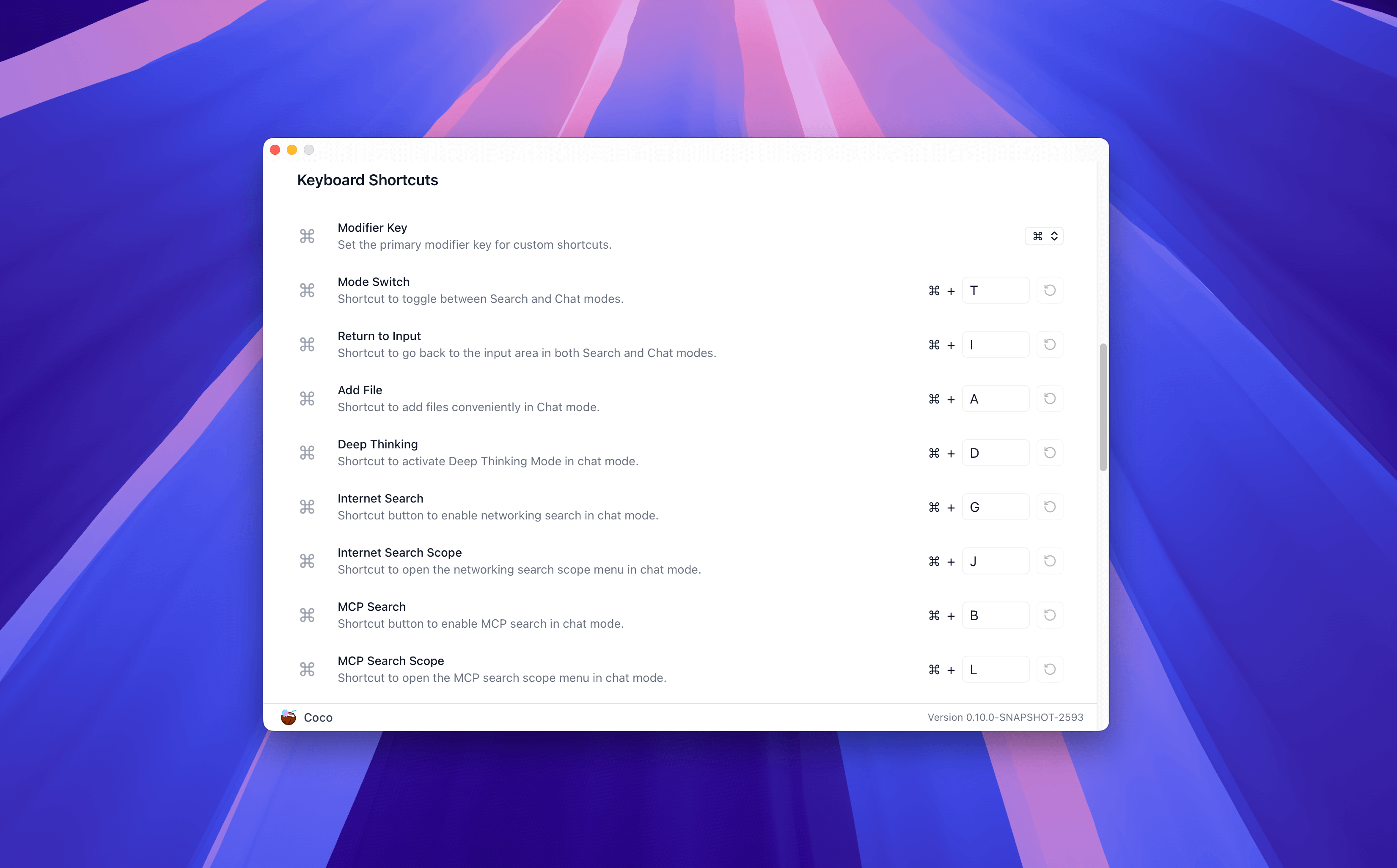
Coco AI allows you to customize shortcuts in the settings to adjust according to your personal needs.
Simply go to Settings (shortcut: Meta + ,) → Advanced → Keyboard Shortcuts to modify the default shortcuts.