Search #
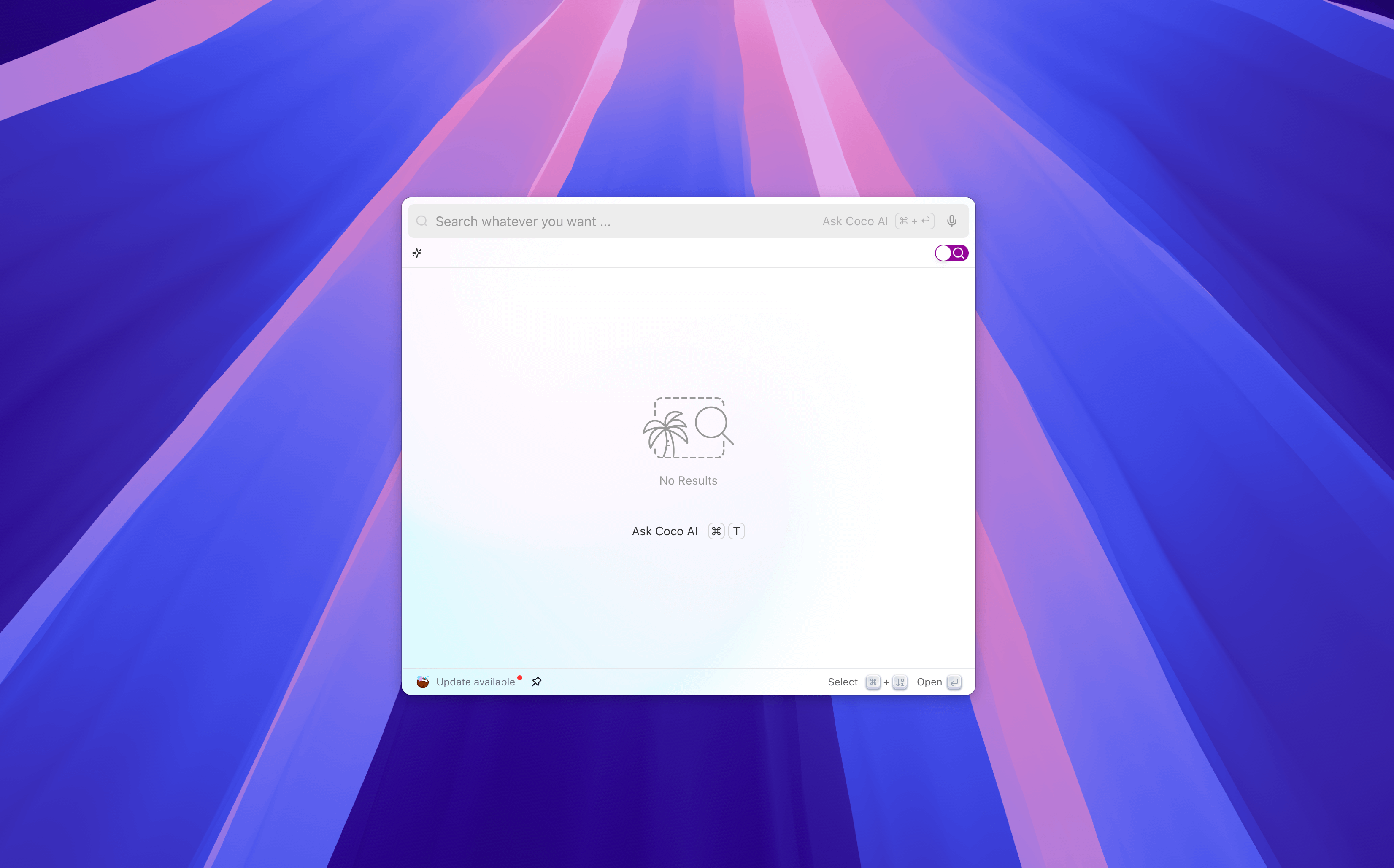
Coco AI’s search function is designed to provide a unified, intelligent, and efficient cross-platform information retrieval experience. In search mode, you can quickly find local files, applications, commands, extensions, data sources in Coco Server (including Google Drive, Notion, Yuque, Hugo sites, RSS, Github, Postgres, etc.), and AI assistants through the search box.

Search Entrance #
- Open the Coco AI interface using the global shortcut (default:
Shift + Meta + Space). - The interface is in search mode (switch modes using the toggle button or the shortcut
Meta + T). - Enter keywords, file names, or natural language questions in the input box.
Search Results #
Coco AI will automatically return a set of concise, structured search results after you enter keywords.
Default Display Rules #
- By default, the first 10 results are displayed.
- When results come from multiple data sources (such as Hugo sites, Google Drive, local files, etc.), they will be displayed grouped by data source.
- If there are fewer than 10 results, they will be displayed without grouping in a single list.
- Each result shows:
- Title (file name, note name, or conversation title)
- Directory information (belonging path or location)
- Key matching fragments or summaries
💡 Tip: Grouping allows you to quickly understand the range of matching content in different data sources, saving time in filtering.
Quick Filtering and Navigation #
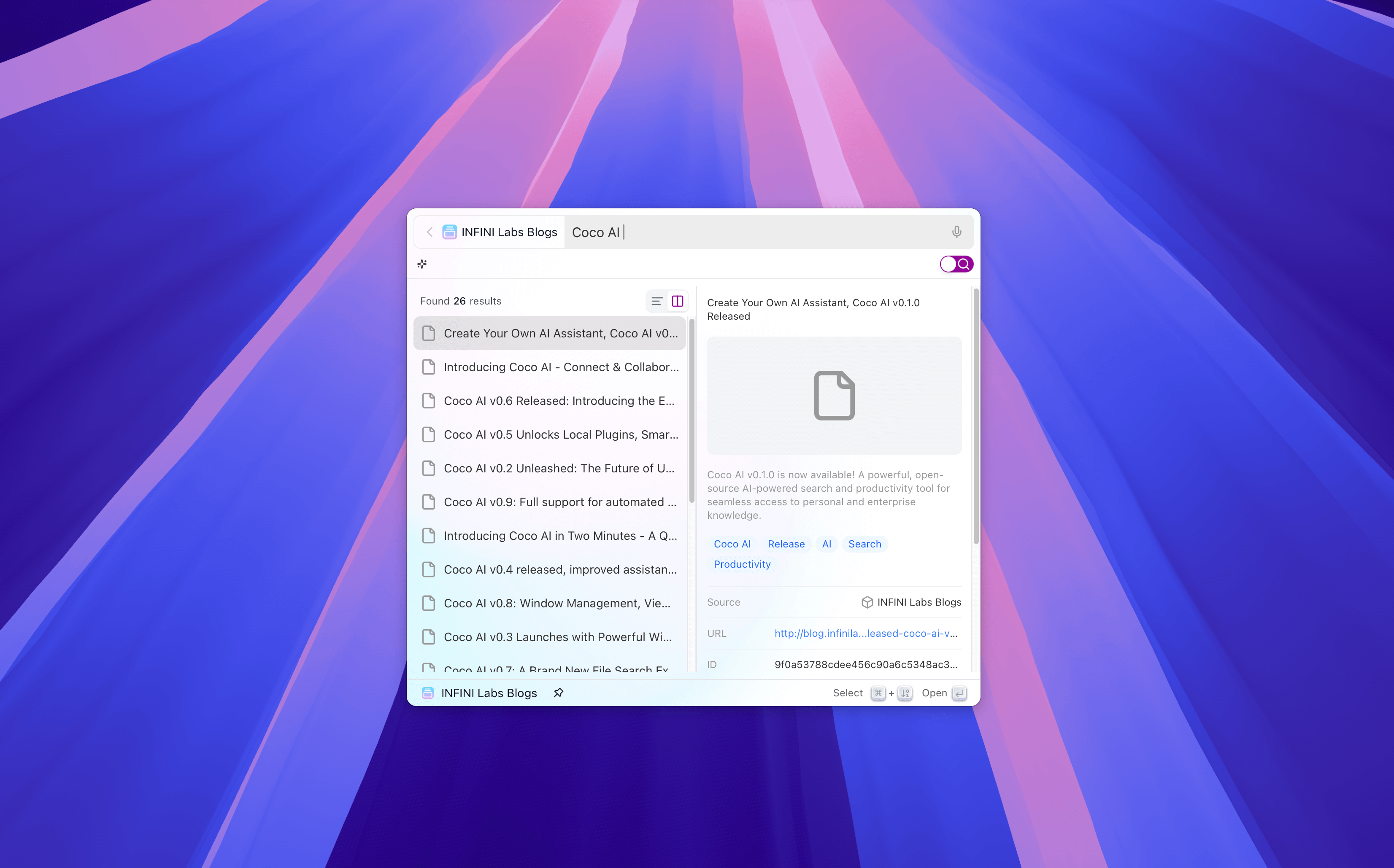
When browsing results, you can use the Tab key to quickly filter the currently selected result:
- After pressing
Tab, Coco AI will automatically use the data source of the current result as the filtering condition. - The interface will switch to the separate search view of that data source.
In the single data source search view, Coco AI will display more abundant content, including:
- More search results (no longer limited to 10)
- More file attributes (size, type, modification time, etc.)
- Content thumbnails or preview summaries to facilitate quick judgment of relevance
When the selected result is an AI assistant or extension, the Tab key can initiate a quick conversation with the AI assistant or open the extension.
Interactive Operations #
- Use the
↓↑arrow keys or mouse to select result items. - Press
EnterorMeta + numberto open the result item. - Press
Tabto filter to the results of that data source or further interact with the selected result. - Press the
Backspacekey to delete input content and return to the previous level. - Press
Escto exit the Coco AI interface.