LLM Provider #
Work with LLM Provider #
The LLM (Large Language Model) Provider enables seamless integration of various AI models into your application. It supports multiple model types, including Deepseek, OpenAI, and more. This guide provides a comprehensive overview of how to effectively utilize the LLM Provider.
LLM Provider API #
Below is the field description for the model provider.
| Field | Type | Description |
|---|---|---|
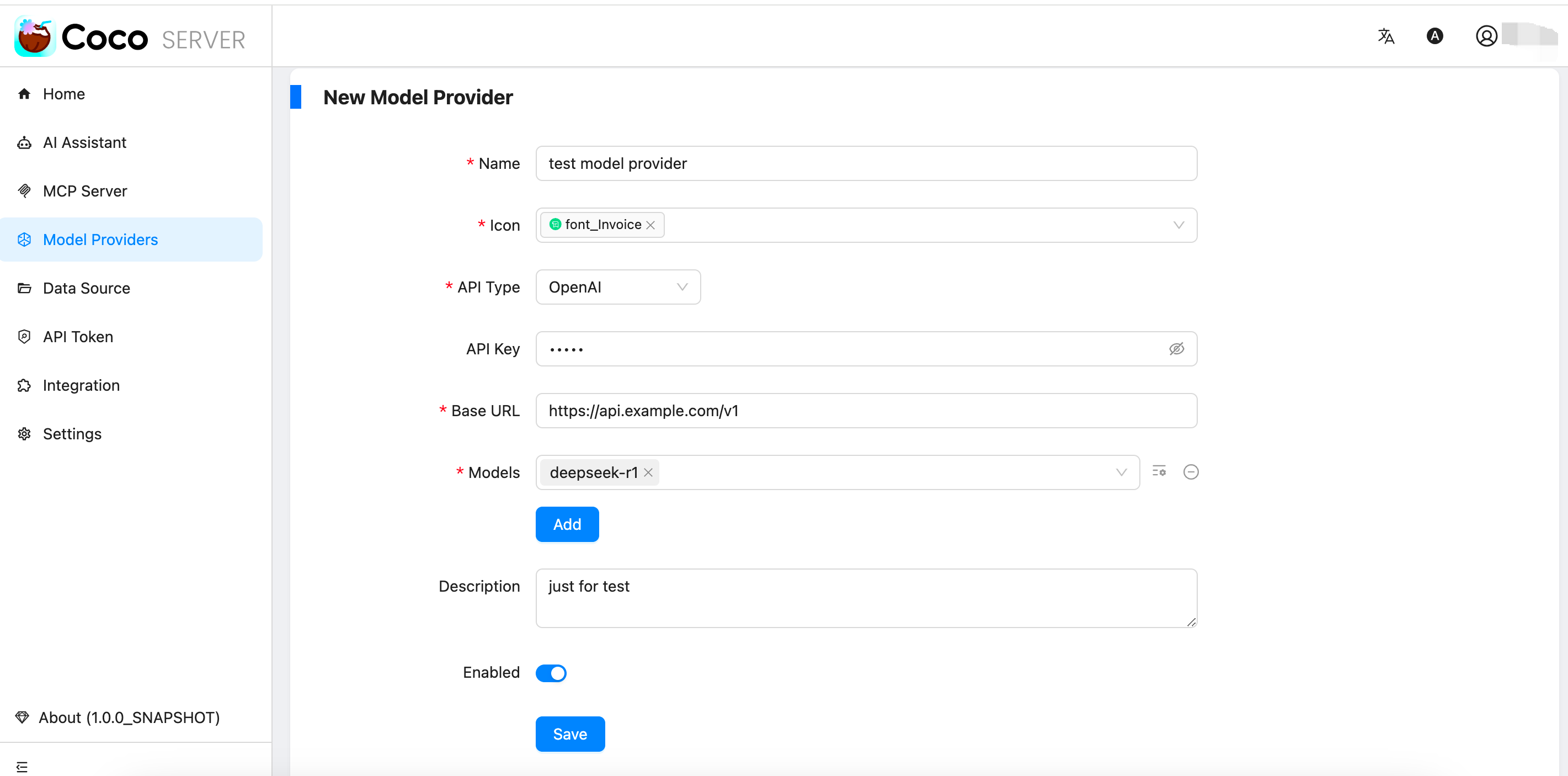
name | string | The model provider’s name. |
api_key | string | The secret key or token required to access the API of the model provider. |
api_type | string | The type to access the API of the model provider, possible values: openai, ollama. |
base_url | string | The API endpoint used to interact with the model provider. e.g., https://api.deepseek.com/v1. |
icon | string | The icon representing the model provider in the UI. |
models | array[object] | A list of models available for the model provider, e.g., [{“name” : “deepseek-r1”,“settings” : {“temperature” : 0.8,“top_p” : 0.5,“presence_penalty” : 0,“frequency_penalty” : 0,“max_tokens” : 1024 } }]. |
enabled | boolean | Enables or disables model provider. |
builtin | boolean | Indicates whether the model provider is built-in. |
description | string | A brief description of the model provider. |
Create a LLM provider #
//request
curl  -H 'Content-Type: application/json'   -XPOST http://localhost:9000/model_provider/ -d '{
  "name" : "Coco AI",
  "api_key" : "******",
  "api_type" : "openai",
  "icon" : "/assets/icons/coco.png",
  "models" : [
    {
      "name" : "tongyi-intent-detect-v3",
      "settings" : {
        "temperature" : 0.8,
        "top_p" : 0.5,
        "presence_penalty" : 0,
        "frequency_penalty" : 0,
        "max_tokens" : 1024
      }
    },
    {
      "name" : "deepseek-r1",
      "settings" : {
        "temperature" : 0.8,
        "top_p" : 0.5,
        "presence_penalty" : 0,
        "frequency_penalty" : 0,
        "max_tokens" : 1024
      }
    },
    {
      "name" : "deepseek-r1-distill-qwen-32b",
      "settings" : {
        "temperature" : 0.8,
        "top_p" : 0.5,
        "presence_penalty" : 0,
        "frequency_penalty" : 0,
        "max_tokens" : 1024
      }
    }
  ],
  "base_url" : "https://dashscope.aliyuncs.com/compatible-mode/v1",
  "enabled" : true,
  "description" : "Coco AI default model provider"
}'

//response
{
  "_id": "cvj0hjlath21mqh6jbh0",
  "result": "created"
}
View a LLM Provider #
curl -XGET http://localhost:9000/model_provider/cvj0hjlath21mqh6jbh0
Delete the LLM Provider #
//request
curl  -H 'Content-Type: application/json'   -XDELETE http://localhost:9000/model_provider/cvj0hjlath21mqh6jbh0

//response
{
  "_id": "cvj0hjlath21mqh6jbh0",
  "result": "deleted"
}
Update a LLM Provider #
curl -XPUT http://localhost:9000/model_provider/cvj0hjlath21mqh6jbh0 -d '{
  "name" : "Coco AI",
  "api_key" : "******",
  "api_type" : "openai",
  "icon" : "/assets/icons/coco.png",
  "models" : [
    {
      "name" : "tongyi-intent-detect-v3",
      "settings" : {
        "temperature" : 0.8,
        "top_p" : 0.5,
        "presence_penalty" : 0,
        "frequency_penalty" : 0,
        "max_tokens" : 1024
      }
    },
    {
      "name" : "deepseek-r1",
      "settings" : {
        "temperature" : 0.8,
        "top_p" : 0.5,
        "presence_penalty" : 0,
        "frequency_penalty" : 0,
        "max_tokens" : 1024
      }
    },
    {
      "name" : "deepseek-r1-distill-qwen-32b",
      "settings" : {
        "temperature" : 0.8,
        "top_p" : 0.5,
        "presence_penalty" : 0,
        "frequency_penalty" : 0,
        "max_tokens" : 1024
      }
    }
  ],
  "base_url" : "https://dashscope.aliyuncs.com/compatible-mode/v1",
  "enabled" : true,
  "description" : "Coco AI default model provider"
}'

//response
{
  "_id": "cvj9s15ath21fvf9st00",
  "result": "updated"
}
Search LLM Providers #
curl -XGET http://localhost:9000/model_provider/_search
LLM Providers UI Management #
LLM Providers #
Log in to the Coco-Server admin dashboard, click Model Providers in the left menu to view all Model Provider lists, as shown below:
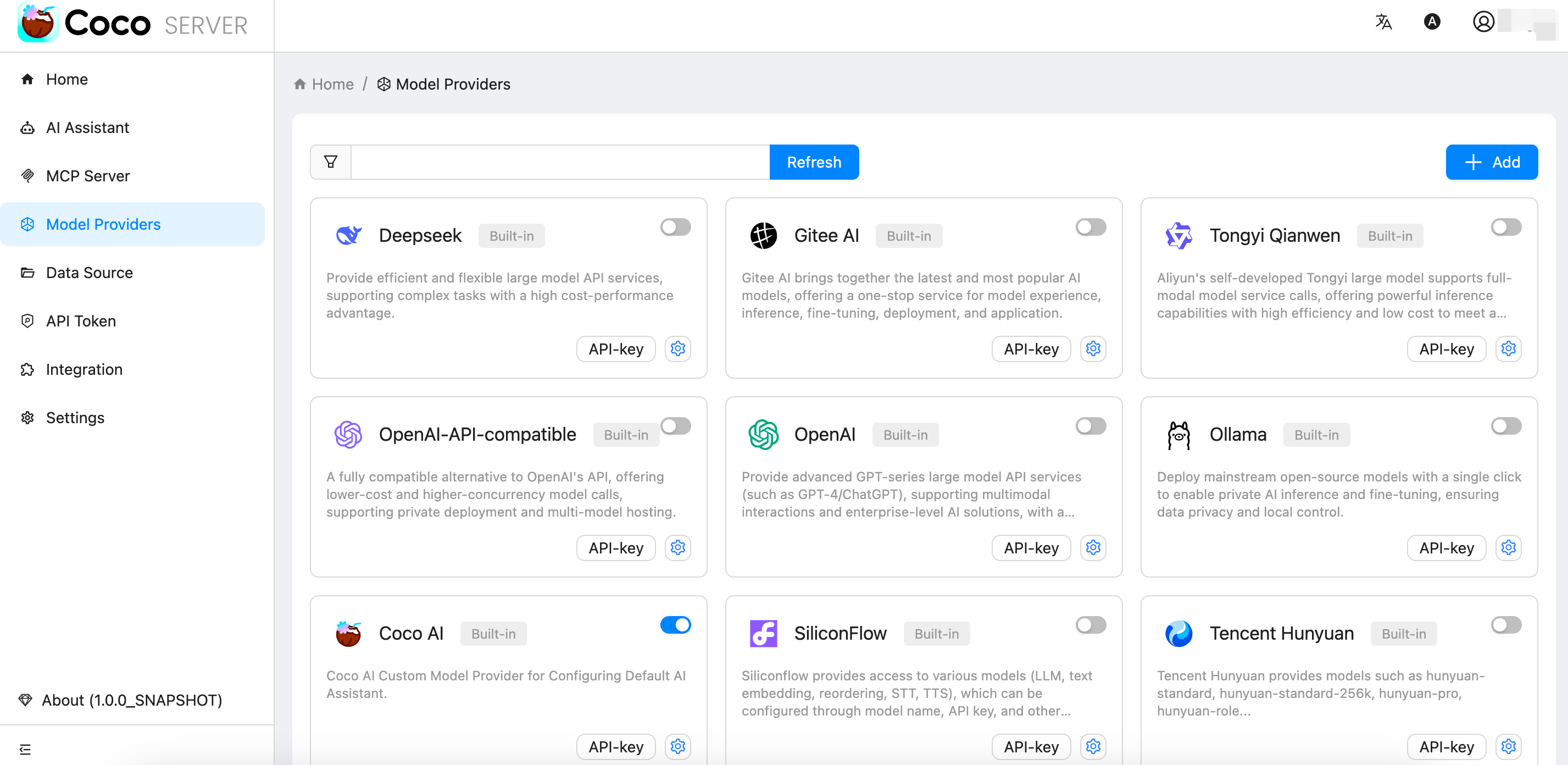
- we can also choose an Model Provider from the card and quickly disable or enable it by toggling the switch.
- choose an Model Provider from the card and click the button
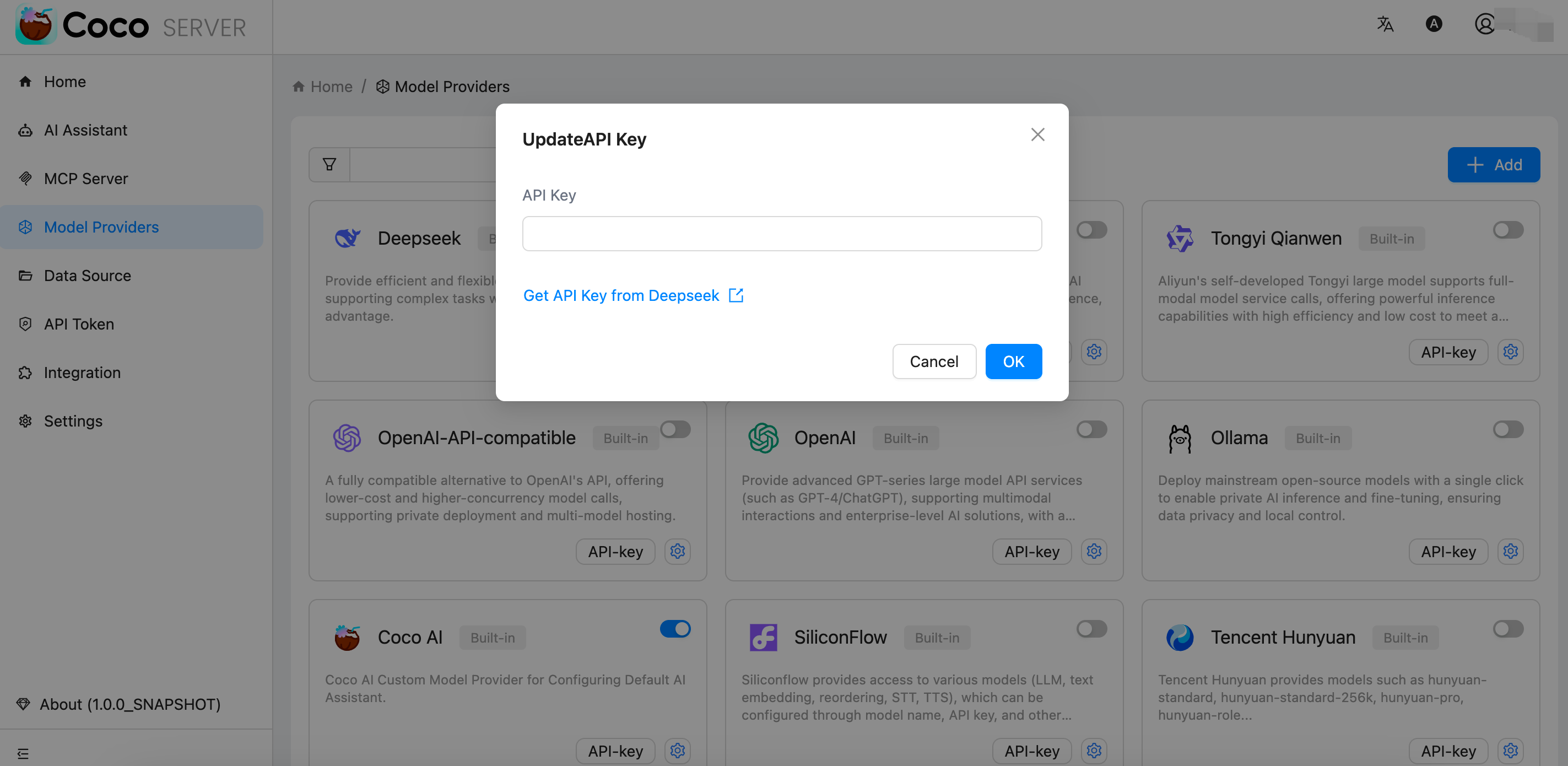
API-Keyto configure the api key.
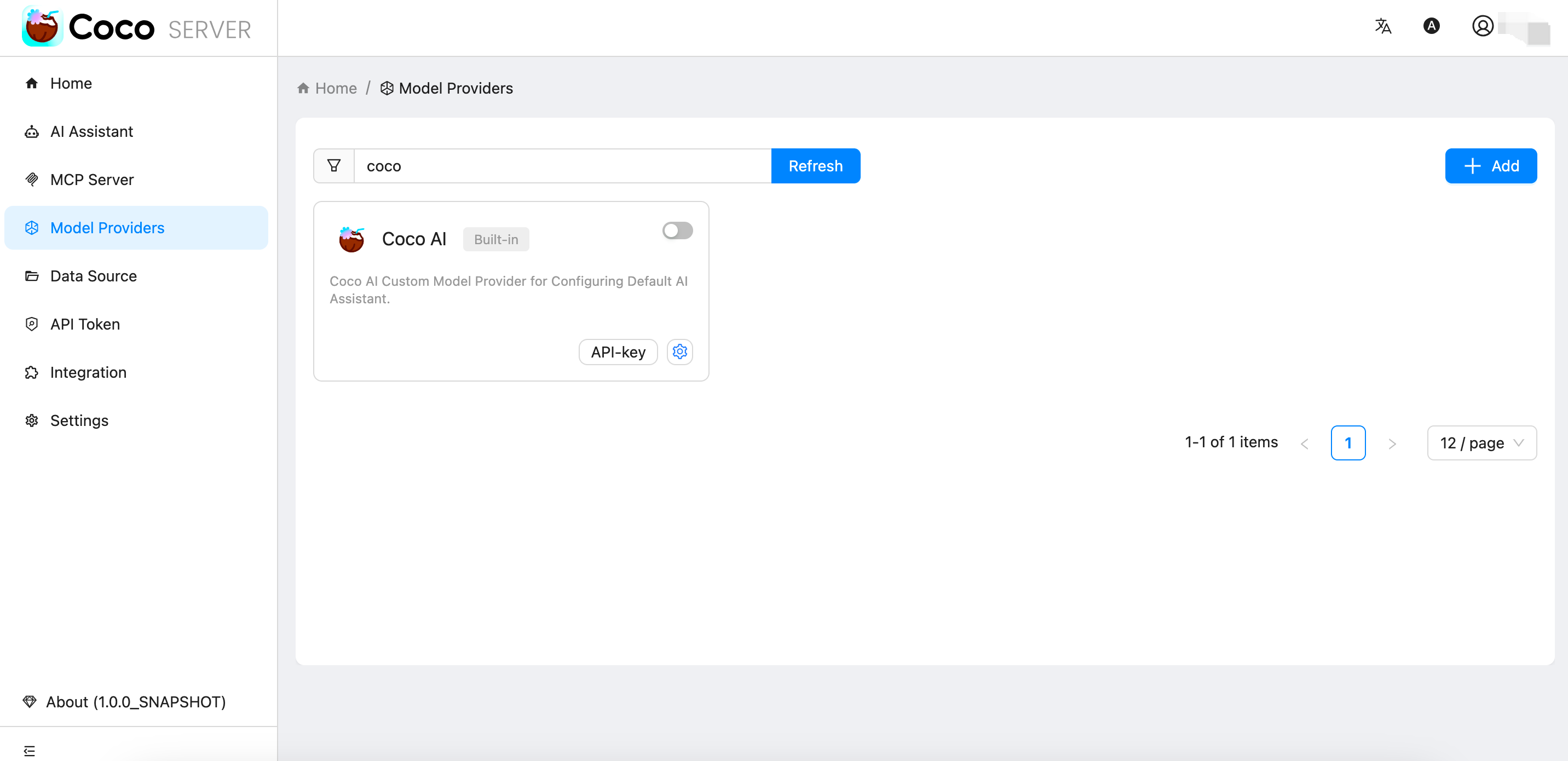
Enter keywords coco in the search box above the list and click the Refresh button to search for matching MCP Server, as shown below:
Add LLM Provider #
Click Add in the top-right corner of the list to create a new Model Provider, as shown below:
Delete LLM Provider #
Select the target Model Provider in the list, click Delete on the bottom right of the card, and confirm in the pop-up dialog to complete the deletion. As shown below:
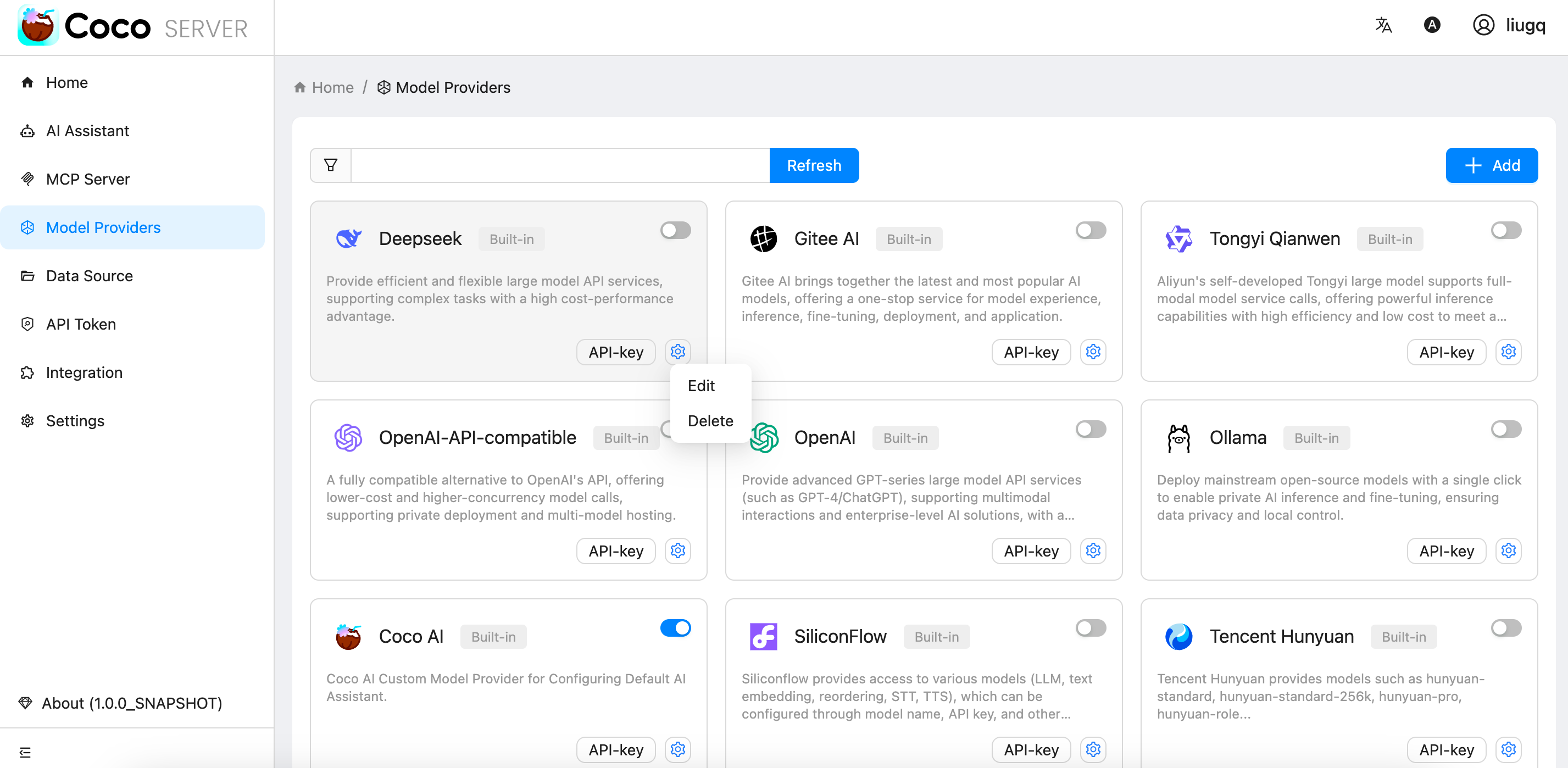
Edit LLM Provider #
Select the target Model Provider in the card list, click Edit on the bottom right of the card to enter the editing page. Modify the configuration and click save to update.